


AR Drawing - Paint & Sketch
4.2524.00 Reviews
App Specs
- Version
- 1.6.9
- Updated On
- License
- Free
- Downloads
- 1,000,000+
- Developer
- LOGICLABS LIMITED
- Categories
- Art & Design
- Platform
- Android
Screenshots
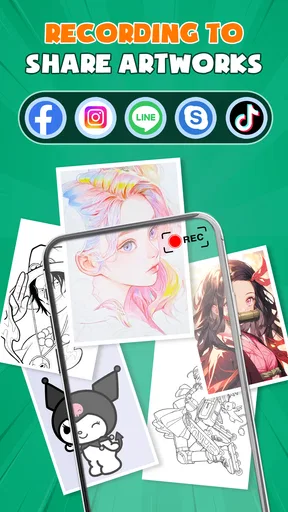
 Analysis by AppCompare
When a drawing app depends on a live camera view, the first challenge is often not drawing at all: it is getting a setup that feels steady and easy to follow. AR Drawing - Paint & Sketch is built around tracing an image through augmented reality, so your phone position, the surface in front of you, and the light in the room all affect how comfortable the process feels. I find that framing it as a guided starting point—not an automatic way to make finished art—sets more realistic expectations and makes the app easier to enjoy.
Where the first attempt can get stuck
The basic idea is simple, but the physical arrangement takes a little thought. A phone held in one hand can wobble while the other hand draws, and a projected guide is less useful if the paper shifts or the camera angle changes. Before starting a detailed sketch, I would place the drawing surface somewhere stable and find a way to keep the phone from moving. Even a small change in position can make following a guide feel less natural.
Light is another practical factor. The published review notes that the AR projection can be finicky in low-light conditions, which is worth taking seriously if you tend to draw in the evening. I would try a brighter, evenly lit spot before deciding that the app itself is misbehaving. Strong glare or distracting shadows can also make a camera-based guide harder to follow, so aim for light that helps you see both the screen and the paper clearly.
Simple checks before you sketch
Give yourself a minute to set up rather than choosing an image and immediately trying to trace it. Check that the surface is comfortable to draw on, that the image is framed in a way you can follow, and that the phone can stay in place throughout the session. If you are using a picture of your own, choose one with a clear subject and an outline you can recognize. A busy image may be interesting, but it can be a frustrating first test because there is more visual information to interpret.
It also helps to start with a small, forgiving drawing. That lets you learn how the camera view and your hand work together without committing to a long session. Keep a pencil and eraser nearby, and treat the on-screen guide as a reference rather than expecting it to do the drawing for you. The app can help you begin a shape; your own hand still controls the lines, pressure, and finish.
Recovering when the workflow feels awkward
If the guide stops feeling aligned while you are drawing, pause instead of trying to compensate with increasingly awkward strokes. Recheck the phone and paper positions, then resume from a part of the image you can identify. For a complicated picture, breaking the task into larger shapes first can make it easier to regain your place than trying to trace every detail in one continuous pass.
There is a useful trade-off here: the more closely you follow a reference, the more important a stable setup becomes. For practice, I would prioritize an easy pose and clean outline over a highly detailed image. If you are drawing with a child or a friend, take turns adjusting the setup and tracing. That keeps the activity relaxed and makes it easier to notice when a movement or angle is causing the trouble.
Worth Reading Before You Choose

EA SPORTS FC Mobile 26 Is a Bigger Football Game, but It Takes Time

Flipboard Shows What News Apps Must Do Beyond the Feed

Switching to Android Auto Means Rethinking Your Driving Routine

Google Calendar Makes a Crowded Week Easier to Manage

Ludo King Makes the Most of the Minutes Between Plans

Baby Panda World Brings Quick Play to Modern Phones, but Its Game Library Feels Busy
When the app may not be the cause
A frustrating session does not always mean the app is at fault. An unstable table, a shifting sheet of paper, dim lighting, or an image with faint details can all make tracing harder. If the experience feels off, change one thing at a time: brighten the room, simplify the reference, or steady the phone. That is a more useful test than changing several parts of the setup at once, because you can see which adjustment actually helps.
There is also a difference between tracing a guide and learning to draw independently. This kind of AR approach can make it easier to start, but it does not replace practice with proportions, observation, or freehand lines. If your main goal is to develop those skills without a visual overlay, a conventional sketching app or paper practice may suit you better. I see the AR format as a bridge into drawing, not a shortcut around the learning process.
For anyone deciding whether to try it, the practical question is whether guided tracing sounds enjoyable. If you want a low-pressure way to copy a reference onto paper, it has an appealing purpose. If you want a full digital canvas for painting, layers, or precise image editing, a dedicated digital art tool is likely the better fit. The app’s focus is narrower, and that can be a strength as long as it matches what you want to do.
Have you ever wanted to unleash your inner artist but felt a bit intimidated by a blank canvas? Well, let me tell you about AR Drawing - Paint & Sketch, an app that's transforming the way we approach art using augmented reality. I recently got my hands on this nifty tool and, trust me, it's like having a magic wand for your creativity.
What’s the Buzz About?
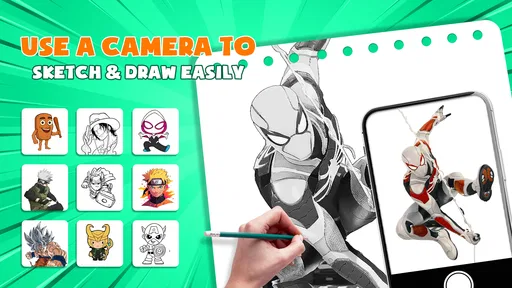
So, what's all the fuss about AR Drawing - Paint & Sketch? In a nutshell, it’s an app that combines the magic of augmented reality with the joy of drawing. You can project images directly onto any surface using your phone's camera and trace them like a pro! Whether you're a newbie to the art scene or a seasoned sketch artist, this app offers something for everyone.
Getting Started
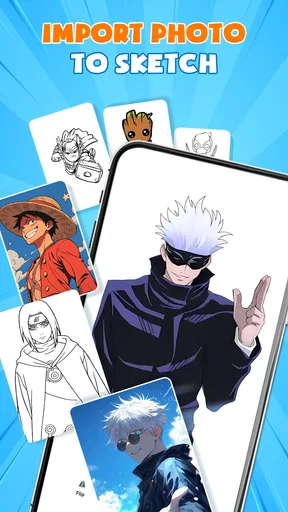
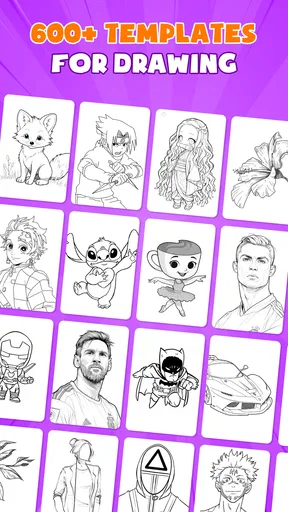
Jumping into the app is like diving into a pool on a hot summer day—refreshing and fun. The user interface is pretty intuitive. Once you download and open the app, you’ll find a library of images and templates to choose from. Feeling adventurous? You can even upload your own pictures. The setup process is a breeze, and within minutes, you're ready to start sketching like a maestro.
Features That Stand Out
The app's features are where the magic happens. Here are some that truly stood out to me:
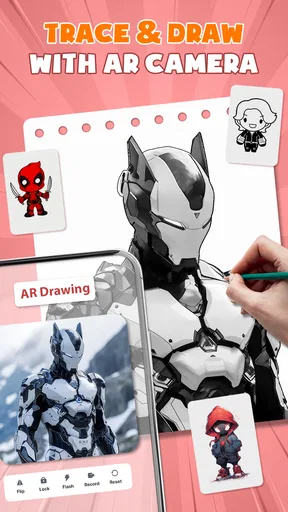
- Augmented Reality Projection: This is the star of the show. You can project any image onto a surface, and the app guides you through tracing it with precision. It's like having a virtual tutor by your side.
- Customizable Tools: From pencil thickness to color palettes, the app gives you a wide array of tools to personalize your artwork. It’s like having an entire art studio in your pocket.
- Step-by-step Tutorials: The tutorials are super helpful, especially if you're new to sketching. They break down complex images into manageable steps, making the learning process smooth and enjoyable.
Why I’m Hooked
Honestly, what I love most about this app is how it makes art accessible to everyone. There's no pressure to create a masterpiece right off the bat. Instead, it encourages experimentation and learning through doing. Plus, it’s a fantastic way to bond with kids or friends over a shared project. Imagine setting up a weekend drawing session with your little ones or hosting a creative night with friends. It’s a blast!
Room for Improvement
Of course, no app is perfect, and there's always room to grow. While using it, I noticed that the AR projection can sometimes be a bit finicky, especially in low-light conditions. But hey, that’s a small price to pay for the overall experience it offers.
Another minor hiccup is that some of the advanced features are locked behind a paywall. If you’re planning to use it extensively, it might be worth considering a subscription. But if you're just dabbling in the world of AR art, the free version is more than sufficient.
Choosing it for the right kind of drawing
I would recommend this to someone who learns best by watching and copying a shape, especially a beginner who finds an empty page intimidating. It can also be handy for a casual craft project: for example, you might use a simple reference to sketch a card illustration, decorate a notebook, or spend a short rainy afternoon drawing with a child. The appeal is not that every result will look polished; it is that the first marks feel easier to make.
For a more experienced artist, the value is different. You may already know how to construct a figure or object, so the overlay is most useful when you want a quick reference or a relaxed tracing exercise. If your usual workflow involves building an image from observation, developing a personal style, or editing a finished digital piece, the guided camera approach may feel restrictive. I would keep it as a companion for practice rather than make it the center of a serious illustration workflow.
Compared with drawing directly in a standard art app, this is a more hands-on, physical activity: you look at a real surface and make marks on it, rather than working entirely on a screen. Compared with tracing from a printed picture, the camera-based guide offers a different way to keep the reference in view, but it asks you to manage the phone and drawing surface at the same time. That convenience has a real setup cost. If you already have a comfortable printed reference and prefer to draw without arranging a device, the traditional method may be simpler.
A more comfortable everyday session
For a short evening session, I would choose a clear template, put the paper on a firm table, and set the phone so I do not have to hold it while drawing. I would sketch the broad outline first, then decide whether the smaller details are worth following. This order keeps the activity approachable and gives me a chance to see whether the reference is a good match before investing more time. If I were using one of my own photos, I would pick a subject with a strong silhouette rather than a crowded scene.
That approach also helps answer a common practical concern: do you need to be good at drawing before opening the app? No. The point of a tracing aid is to give a beginner a visible starting path. Still, patience matters. The guide can make the outline easier to follow, but it cannot make every hand movement accurate, and the result will depend on how steady your setup is and how much detail you attempt.
Another question is whether a personal image is more useful than a built-in choice. I would use the available templates when I want to start quickly, then try my own picture once I understand the tracing rhythm. Choosing a familiar subject can make the task more meaningful, but a photo with lots of overlapping edges may be harder than a clean template. For a first custom attempt, simplicity beats novelty.
Who should give it a try
As an art-and-design app from LOGICLABS LIMITED, it has a focused appeal: it brings a camera-guided drawing activity to people who might not think of themselves as artists. It is free to download, rated for Everyone, and has an average rating of 4.4 from around fifteen thousand ratings, with more than a million installs. Its current version is 1.6.9, and it runs on Android 7.0 or later. Those details make it easy to assess whether it is available for your device and whether its beginner-friendly premise fits your household.
I would especially consider it for a parent looking for a shared drawing activity, a student who wants to practice copying shapes, or anyone who enjoys making physical sketches but needs a nudge to begin. I would skip it if I wanted a precise digital illustration workspace, a completely hands-off drawing lesson, or a tool that removes the need to stabilize a phone and paper. The strongest use case is modest and clear: helping someone move from “I don’t know what to draw” to a first sketch.
Final Thoughts
In conclusion, AR Drawing - Paint & Sketch is a game-changer for anyone looking to explore their artistic side. Its blend of technology and creativity is nothing short of inspiring. If you're searching for a fun, innovative way to start drawing or just want to add a bit of flair to your art routine, give this app a whirl. You might just find yourself hooked, just like I did!
So, go ahead and download it. Dive into the world of AR art and see where your imagination takes you. Happy sketching!
Pros
- Easy-to-follow tutorials enhance learning.
- Wide variety of drawing templates available.
- AR mode seamlessly integrates with real world.
- User-friendly interface for all ages.
- Offline mode for uninterrupted creativity.
Cons
- Limited color palette options.
- Occasional lag in AR mode.
- Ads can be intrusive at times.
- Requires high battery consumption.
- Some features locked behind paywall.
FAQs for AR Drawing - Paint & Sketch
What is AR Drawing - Paint & Sketch and how does it work?
AR Drawing - Paint & Sketch is an innovative app that merges augmented reality with drawing and sketching. It allows users to project images onto any surface, making it easier to trace and draw. Using your device’s camera, the app overlays images onto real-world environments, providing a unique way to enhance your art skills.
Is AR Drawing - Paint & Sketch suitable for beginners?
Yes, AR Drawing - Paint & Sketch is designed to be user-friendly, making it suitable for beginners. The app provides various templates and guides to help users learn basic drawing techniques. Its intuitive interface and step-by-step instructions make it easy for anyone to start drawing, regardless of their skill level.
What features does AR Drawing - Paint & Sketch offer?
AR Drawing - Paint & Sketch offers a range of features including image overlay, adjustable opacity, and a variety of templates. Users can upload their own images or choose from a library of pre-made designs. The app also includes a grid feature to assist with proportion and perspective, making it versatile for different artistic needs.
Are there any in-app purchases or subscriptions in AR Drawing - Paint & Sketch?
While AR Drawing - Paint & Sketch is free to download, it does offer in-app purchases. These may include additional templates, advanced tools, and features that enhance the drawing experience. Subscriptions are available for users who wish to access premium content and regularly updated features.
What devices are compatible with AR Drawing - Paint & Sketch?
AR Drawing - Paint & Sketch is available for both Android and iOS devices. However, for the augmented reality features to function effectively, the device must support AR technology. It’s recommended to check the app compatibility with your device model and operating system version before downloading.


